Creating a Farm
Adding a farm is the first step to start working in Koru.Farm. After creating a farm, you can add cultivation zones, crops, and plan agricultural activities.
Adding a New Farm
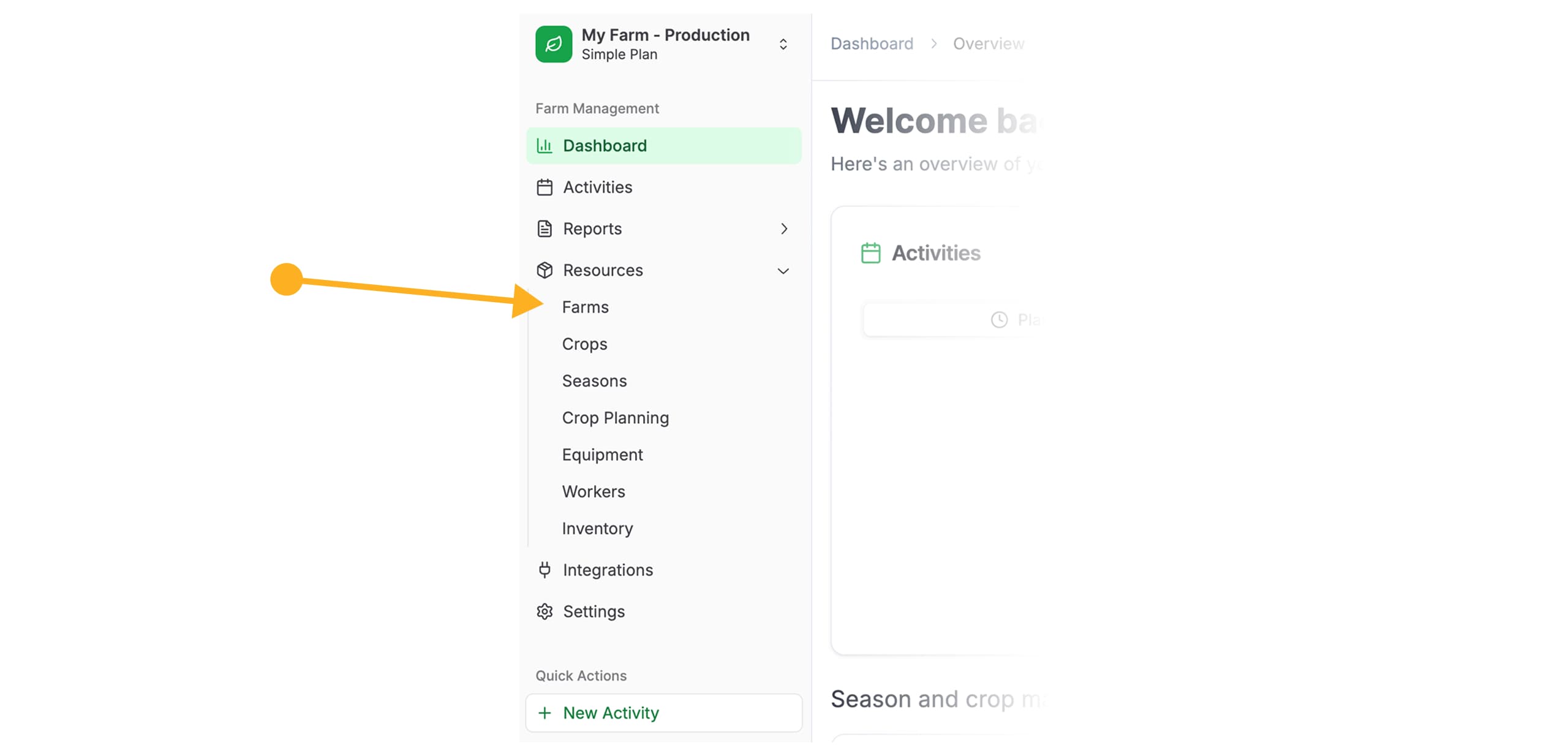
Open the “Farms” Section
In the left navigation menu, select Resources, then click on Farms.
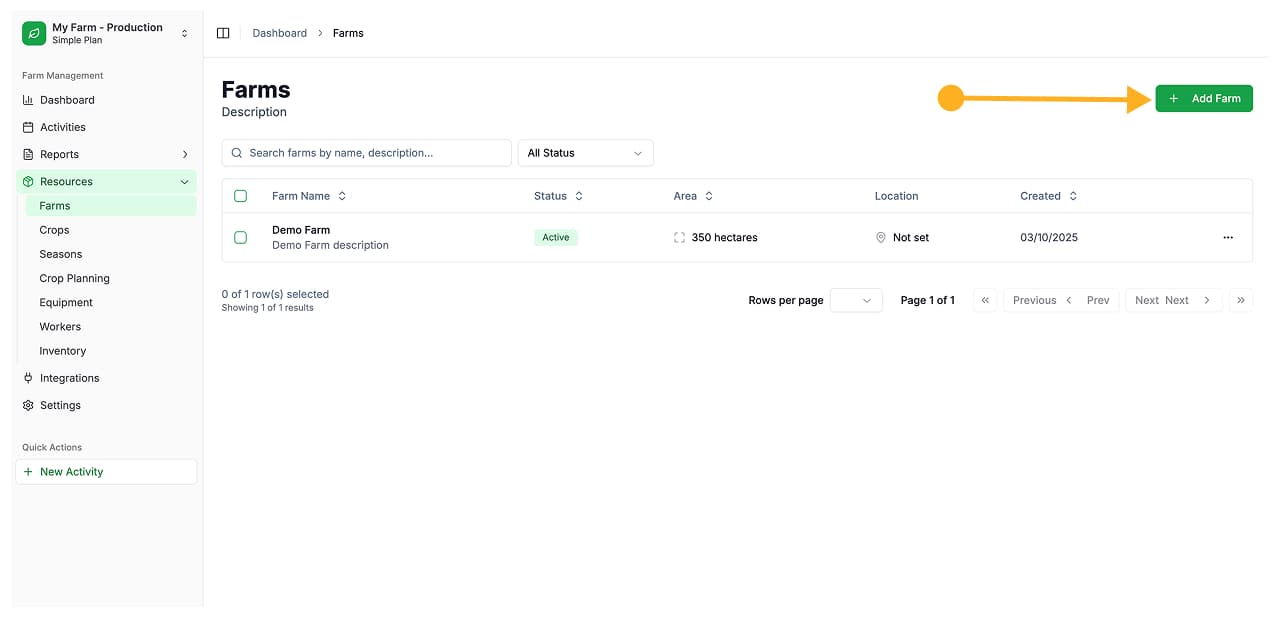
Click the “Add Farm” Button
On the Farms page, click the Add Farm button to create a new farm.
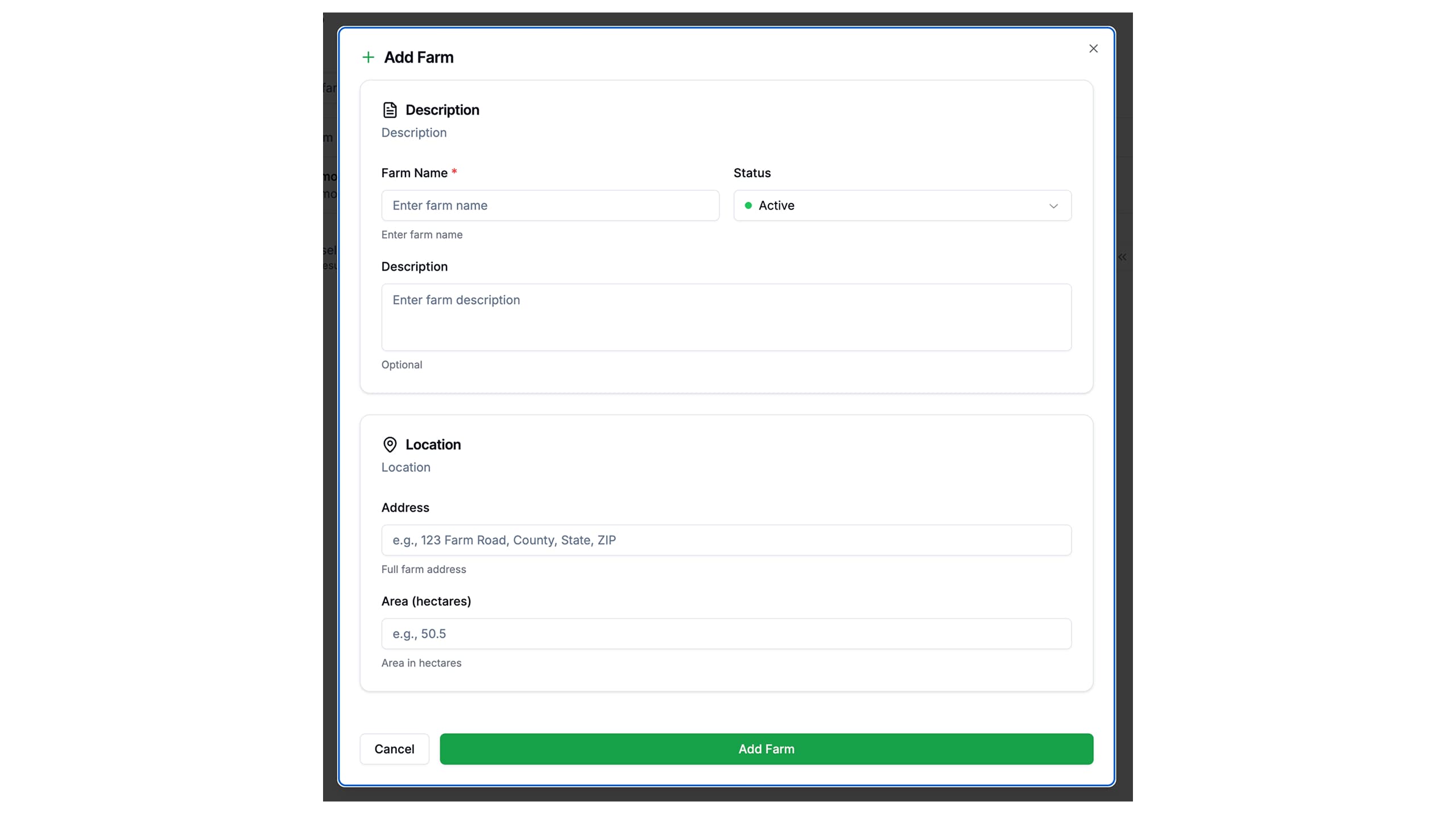
Fill in the Farm Information
In the form that opens, fill in the required fields:
- Farm name — enter your farm’s name
- Status — select your farm’s status
- Description — enter your farm’s description
- Location — enter your farm’s address
- Area — enter the approximate area in hectares
Save the Farm
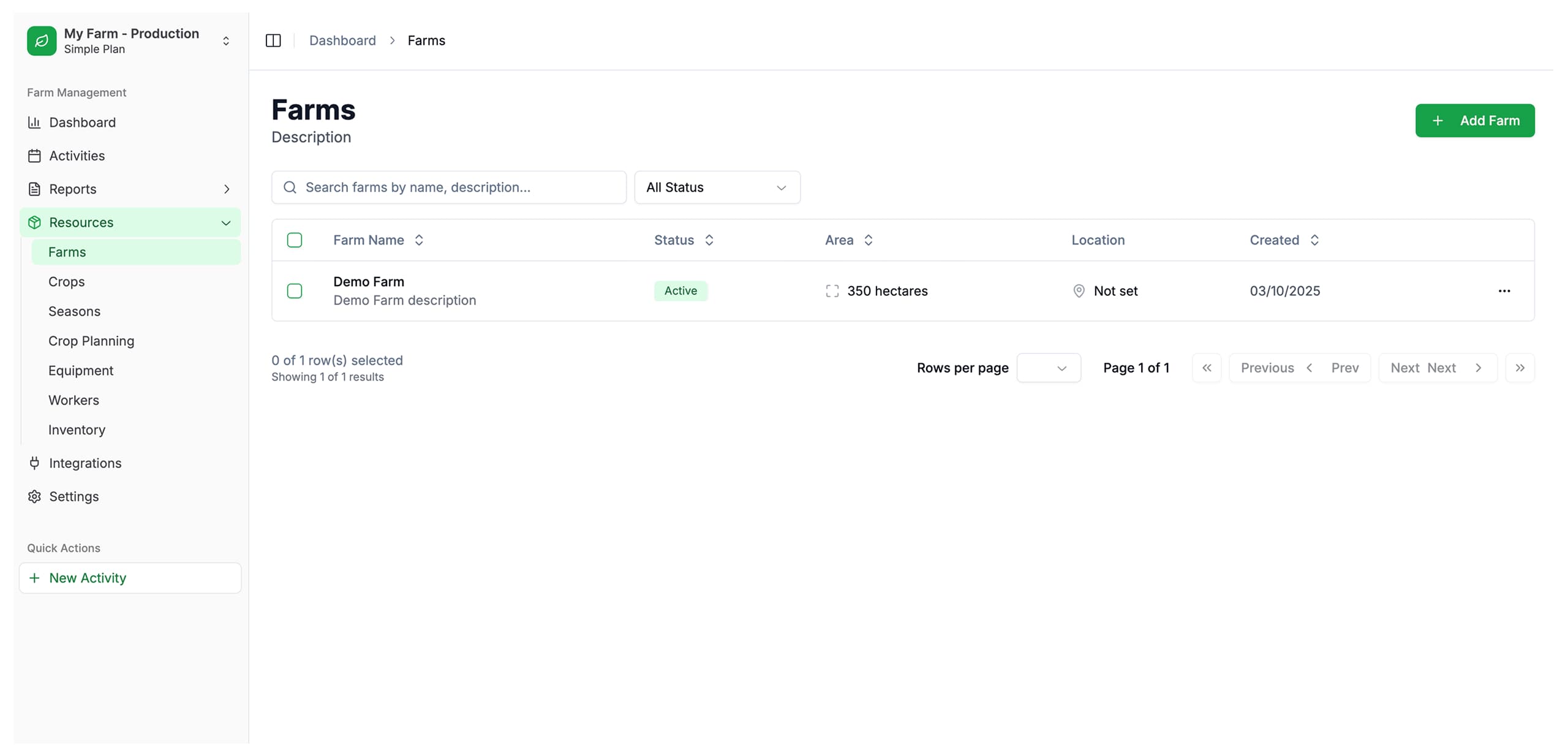
After filling in all fields, click the Add Farm button to save.
After adding the farm, you will be automatically redirected to the Farms page, where you will see a list of all farms added to your account.
Field Descriptions
| Field | Description | Required |
|---|---|---|
| Farm name | Your farm’s name | Yes |
| Status | Your farm’s Status | Yes |
| Description | Your farm’s Description | No |
| Location | Farm address (city, region, country) | No |
| Area | Total land area in hectares | No |
The farm area is used for general statistics. You will specify the exact sizes of individual plots when creating cultivation zones.
What’s Next?
After creating a farm, we recommend:
- View farm details and add cultivation zones
- Add crops to track plantings
- Create your first activity to plan work
Last updated on