Quick Start
This brief guide will help you complete a full workflow in Koru.Farm in just 5 minutes. By the end, you’ll see your first farm, cultivation zone, and scheduled activity on the Dashboard.
For detailed information about each step, use the links to the corresponding documentation sections.
Sign In
Open koru.farm and click Login in the top right corner. Enter the email and password provided by our team, and click Sign in.
→ Learn more: Registration and Login
Create a Farm
In the left menu, select Resources → Farms and click Add Farm. Enter your farm’s address in the Location field and the area in hectares in the Area field. Click Add Farm to save.
→ Learn more: Creating Your First Farm
Add a Cultivation Zone
On the Farms page, click the three dots (⋮) next to your farm and select Details. On the details page, click Add Cultivation Zone. Enter the zone name, production type, and area, then save.
→ Learn more: Cultivation Zones
Add a Crop
In the left menu, select Resources → Crops and click Add Crop. Choose the crop type, specify the variety, and link it to the cultivation zone you created. This will allow you to track growth and plan seasonal activities.
→ Learn more: Crop Management
Create Your First Activity
Click the quick activity creation button in the sidebar, or go to Activity and click Add Activity. Select the activity type (e.g., irrigation or planting), set the date, and link it to the farm or zone. Save the activity.
→ Learn more: Activity Management
Check the Result
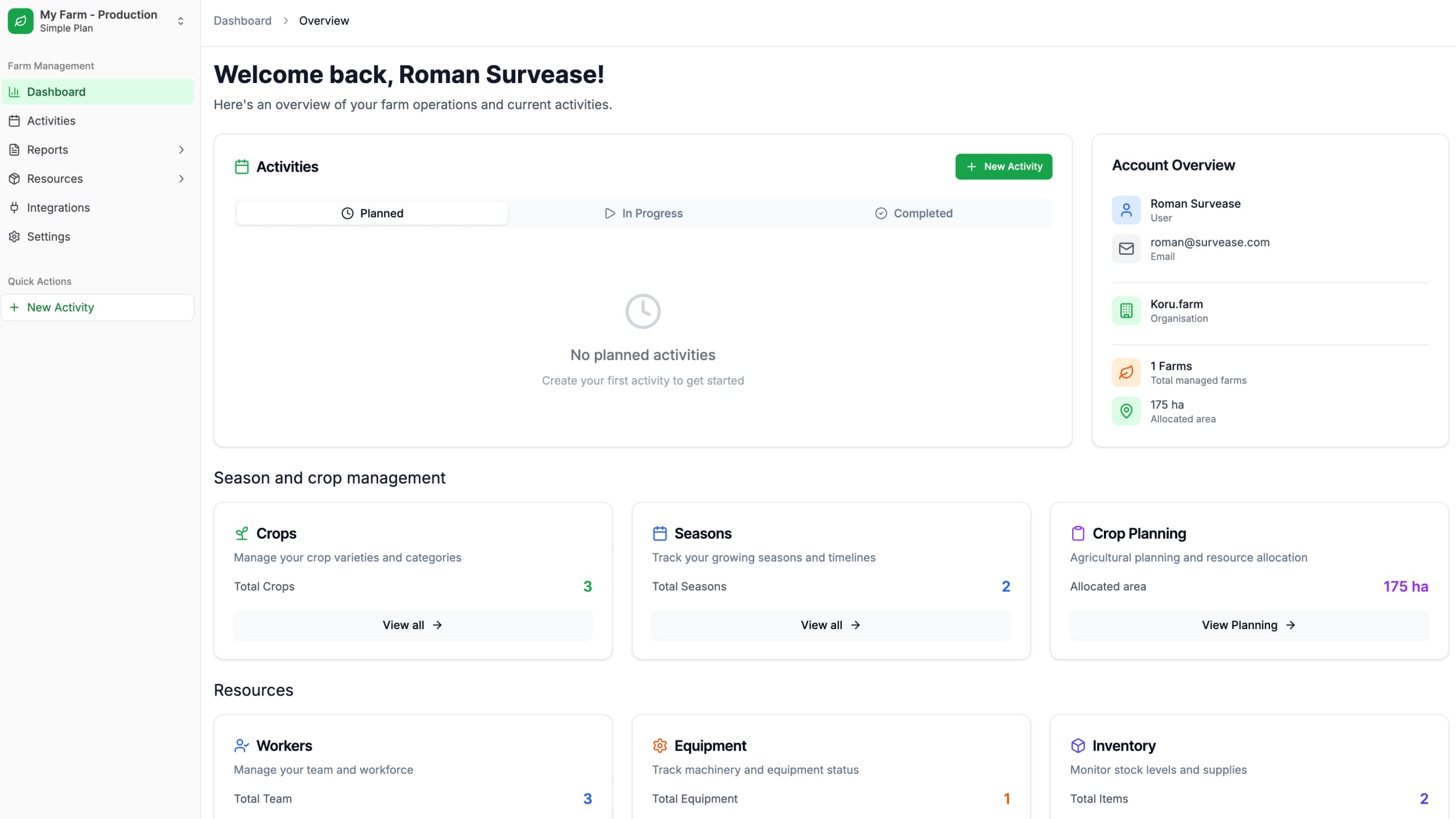
Navigate to the Dashboard via the left menu. Here you’ll see the created activity in the Activity block, as well as information about your crops and seasons in the corresponding blocks.
Done! 🎉
Congratulations! You’ve successfully set up the foundation for working in Koru.Farm:
- ✅ Farm created
- ✅ Cultivation zone added
- ✅ Crop registered
- ✅ First activity scheduled
You can now continue adding data about your farm, planning activities, and tracking progress on the Dashboard.
What’s Next?
- Interface Overview — detailed exploration of features
- Team Management — add employees to distribute tasks
- Reports — analyze your farm’s efficiency