Creating Your First Farm
After signing in, your first step will be adding your farm. This is the foundation for all further work in Koru.Farm.
Adding a New Farm
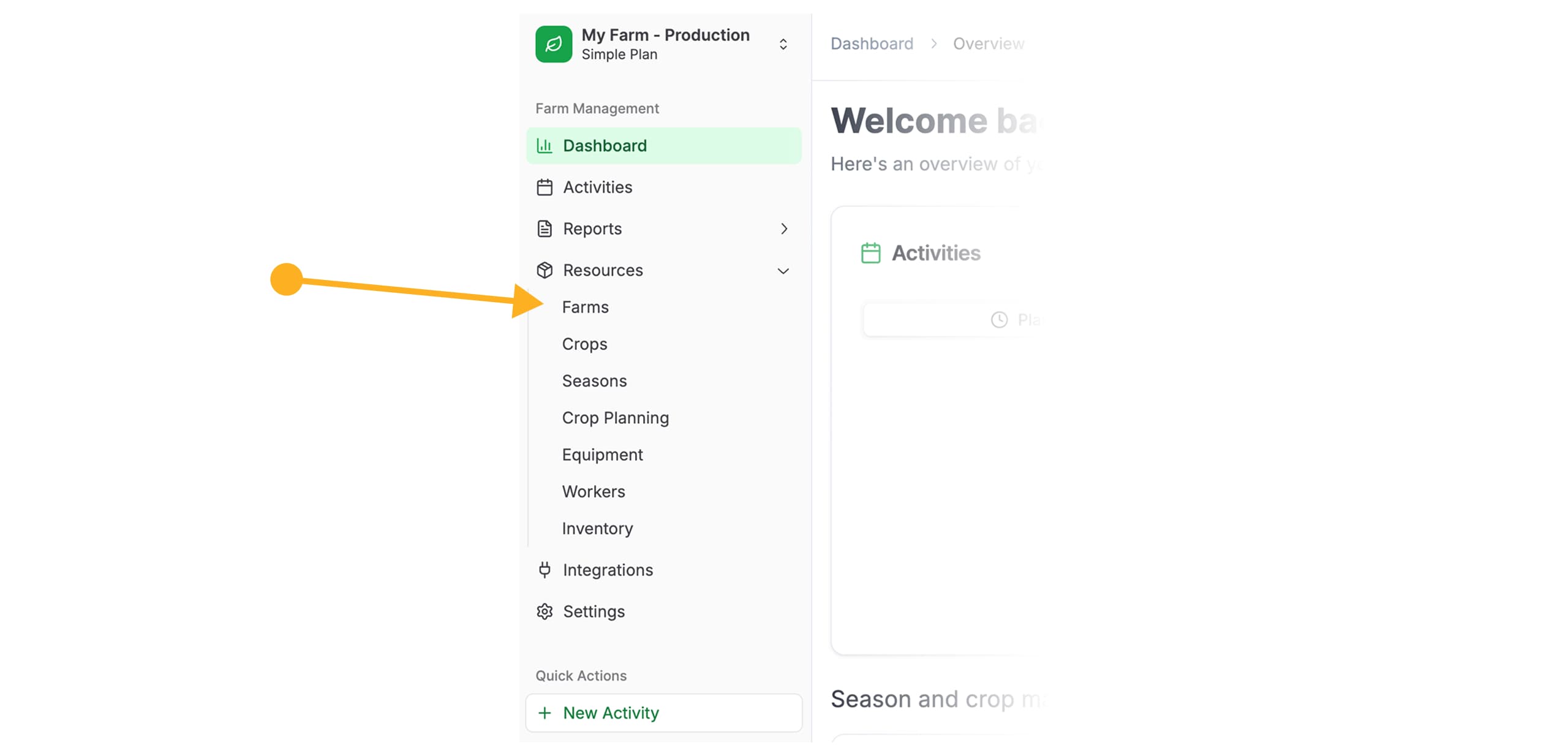
Open the “Farms” Section
In the left navigation menu, select Resources, then click on Farms.
 если нам нужно импортировать модуль Callout.
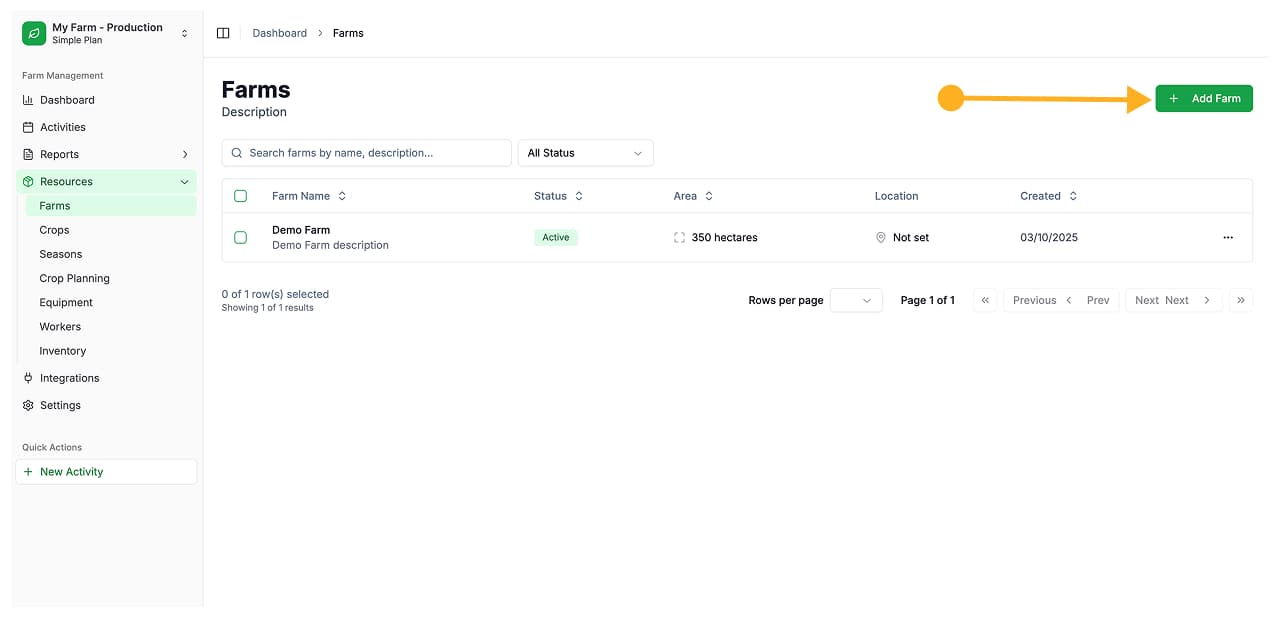
Click the “Add Farm” Button
On the Farms page, click the Add Farm button to create a new farm.
Fill in the Farm Information
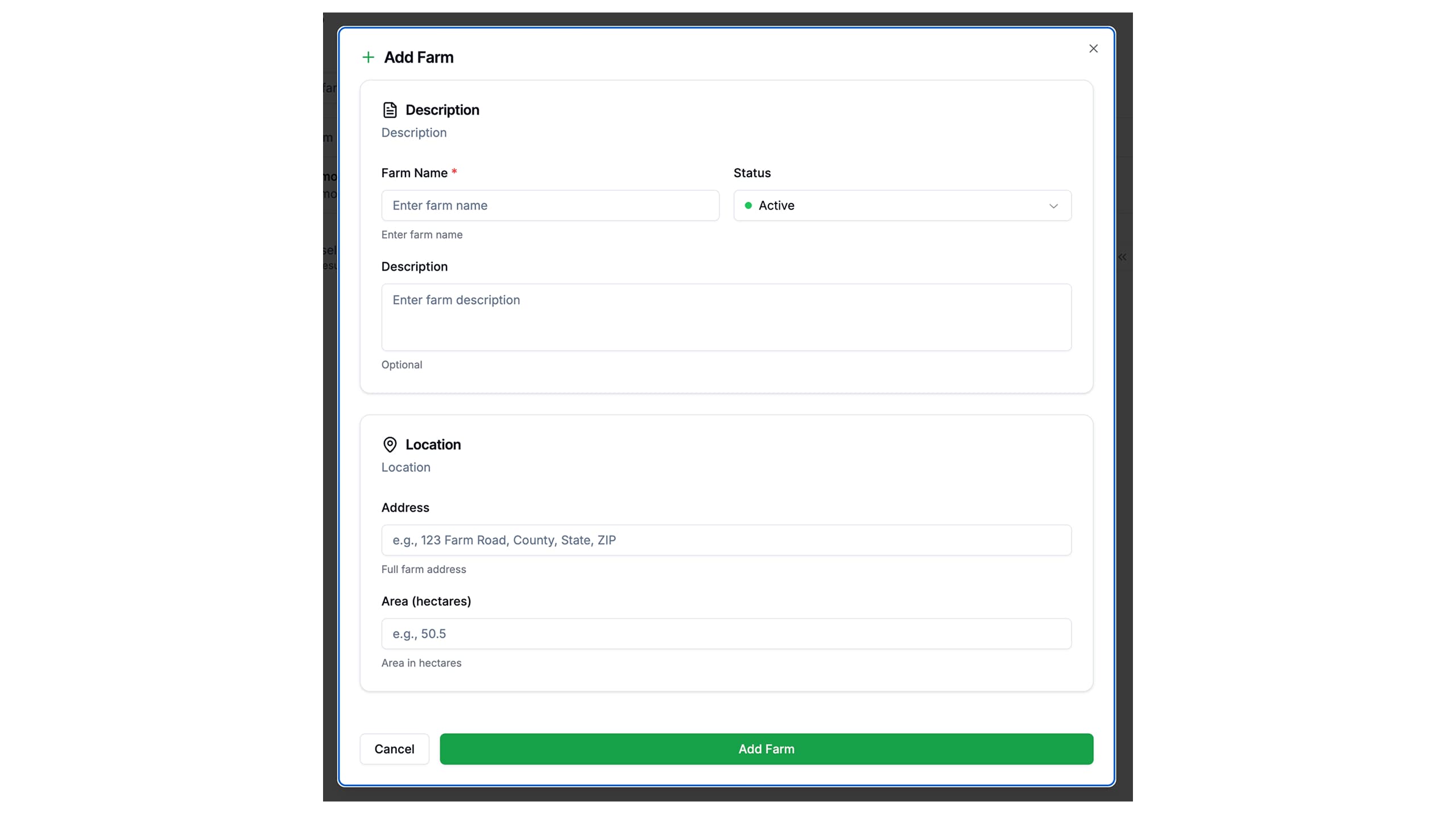
In the form that opens, fill in the required fields:
- Farm name — enter your farm’s name
- Status — select your farm’s status
- Description — enter your farm’s description
- Location — enter your farm’s address
- Area — enter the approximate area in hectares
Save the Farm
After filling in all fields, click the Add Farm button to save.
After adding the farm, you will be automatically redirected to the Farms page, where you will see a list of all farms added to your account.
Viewing Farm Details
To view complete information about a farm and manage its cultivation zones, use the details page.
Open the Actions Menu
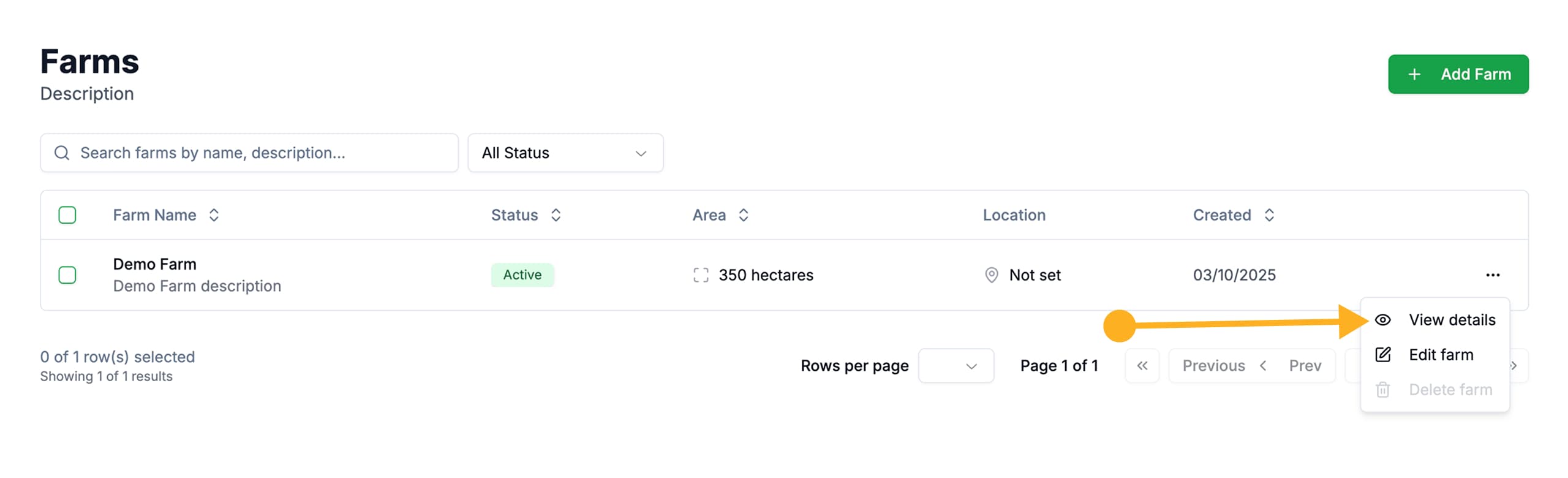
On the Farms page, find the desired farm in the list and click on the three dots icon (⋮) in the right corner of the row.
Select “Details”
In the dropdown menu that opens, select View details.
Review the Farm Information
On the details page, you will see all information about the farm on a single page.
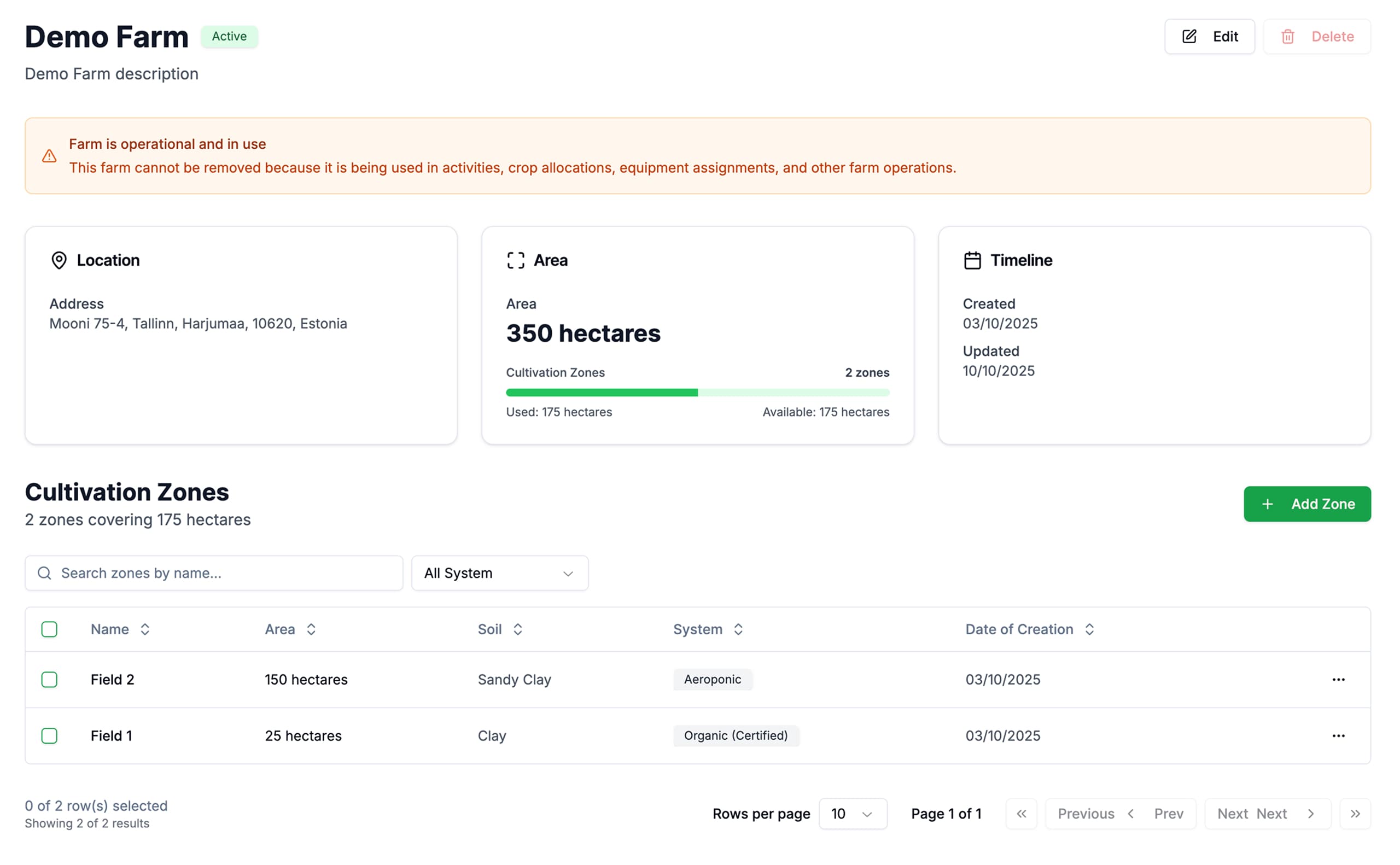
On the farm details page, you can also add Cultivation Zones. Read more about this in the Cultivation Zones section.
Editing a Farm
If you need to change farm information, you can do so at any time.
Open the Actions Menu
On the Farms page, find the desired farm in the list and click on the three dots icon (⋮) in the right corner of the row.
Select “Edit Farm”
In the dropdown menu that opens, select Edit Farm.
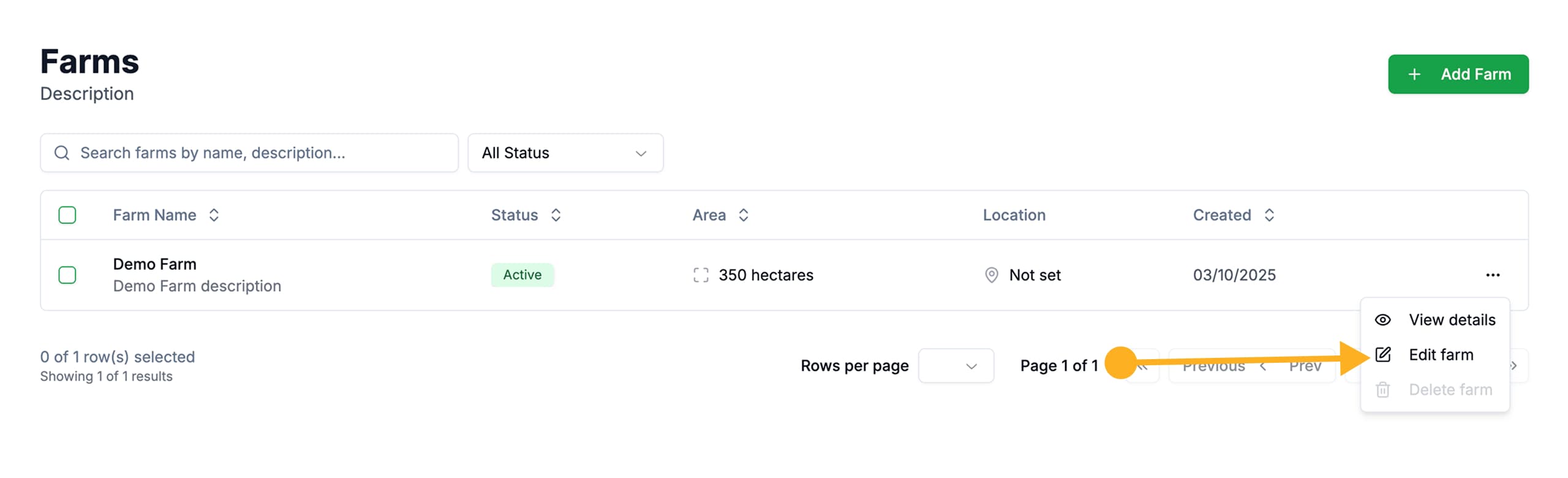
Make Changes
In the modal window, edit the necessary fields and click the save button to apply the changes.
Changes are saved instantly and displayed in the farm list immediately after saving.
Deleting a Farm
You can delete a farm if it is no longer in use.
Open the Actions Menu
On the Farms page, find the desired farm in the list and click on the three dots icon (⋮) in the right corner of the row.
Select “Delete Farm”
In the dropdown menu that opens, select Delete Farm.
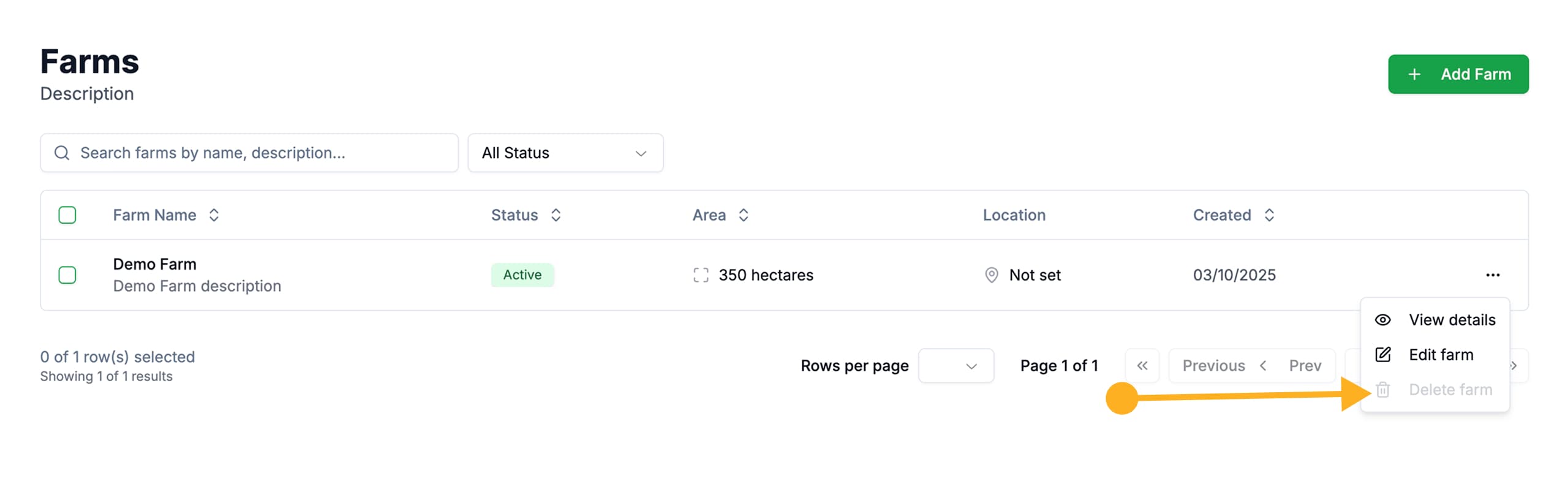
Confirm Deletion
Confirm the action in the dialog box.
Deleting a farm is only possible if no other resources are linked to it. If the farm is associated with Cultivation Zones, Crops, or Seasons, deletion will be blocked. First, delete or reassign all linked resources.